
Creating VHS Retro Effects in Final Cut Pro: A Complete Guide
Learn how to add authentic VHS retro effects to your videos in Final Cut Pro, including scan lines, noise, color shift, and frame jitter for that nostalgic 90s aesthetic.
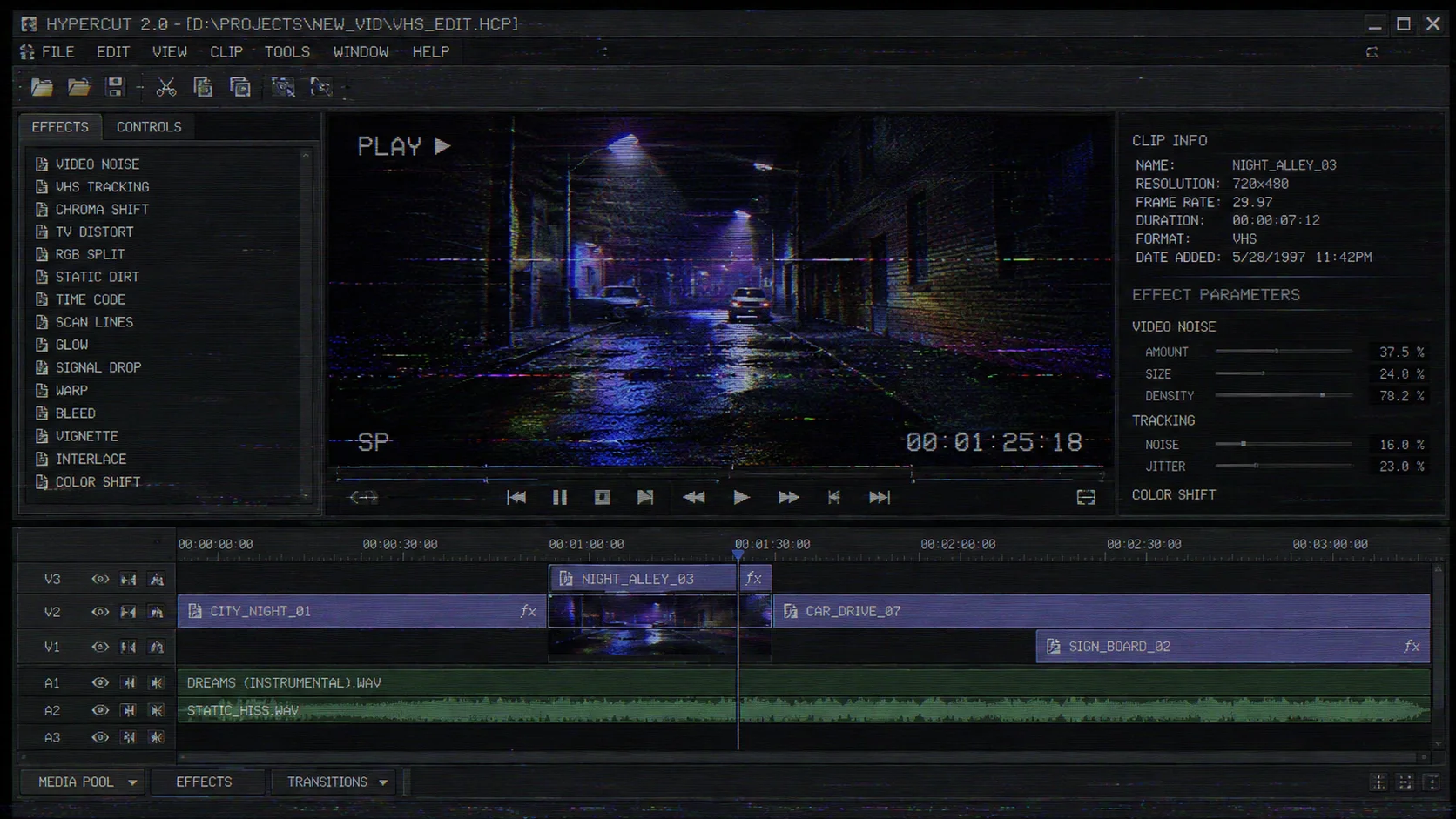
The VHS retro effect remains popular in music videos, brand content, and social media shorts. This visual style, born from 80s and 90s home videotape, creates strong nostalgic appeal through its distinctive artifacts: scan lines, color drift, frame jitter, and noise. Final Cut Pro provides powerful tools to create convincing VHS effects without third-party plugins.
1. Core visual elements of VHS effects
Authentic VHS effects consist of multiple layered visual artifacts. Scan lines are horizontal lines moving across the frame, originating from the physical nature of tape playback. Color shift appears as slight misalignment between red, blue, and green channels, creating rainbow edges. Frame jitter makes the entire image wobble slightly, simulating inaccurate tape tracking. Noise and grain come from analog signal interference and tape wear.
- Scan lines create interlaced visual effect
- RGB channel offset produces color glitch aesthetic
- Frame jitter simulates unstable tape playback
- Noise and grain add vintage texture
2. Setting up your project in Final Cut Pro
First, place your footage on the timeline and create a compound clip for unified effect application. Consider building the VHS effect foundation before color grading, so you can preview the final look while adjusting. If your source is modern high-definition footage, consider reducing sharpness and saturation first to make the image feel more like analog recording.
3. Creating scan lines with built-in effects
Final Cut Pro has no dedicated VHS preset, but you can achieve the effect by combining multiple built-in effects. Use the 'Lines' effect or adjust 'Grid' spacing to create horizontal lines. Lower line opacity so content remains visible. Add subtle animation to make lines drift slowly, enhancing the authenticity of simulated tape playback.
- Use 'Lines' or 'Grid' effects to create scan lines
- Set line spacing to 2-4 pixels
- Lower opacity to 20-40%
- Add keyframes for slow line movement
4. RGB channel shift effect
One of the most iconic VHS characteristics is slight misalignment between red, green, and blue channels. In Final Cut Pro, use the 'Channel Offset' effect or separately adjust R, G, and B channel positions. Horizontal offset of 3-8 pixels usually produces visible effect without making the image unrecognizable. Increase offset during transitions or dynamic moments to simulate tape tracking issues.
5. Adding noise, jitter, and color correction
Use the 'Noise' effect to add grain, keeping settings between 5-15% to maintain visibility. 'Jitter' effect can be achieved through keyframe animation, creating slight frame displacement during playback. For color correction, slightly increase contrast, reduce saturation, and shift color balance toward cyan and magenta to simulate old TV color reproduction.
- Keep noise intensity between 5-15%
- Control jitter amplitude to 1-3 pixels
- Increase contrast, reduce saturation
- Shift color balance toward cyan and magenta
6. Audio processing to complete the retro experience
A VHS effect is incomplete without corresponding audio treatment. Reduce high-frequency response for a muffled sound, add subtle background hum to simulate tape playback electronic noise. Occasionally insert brief audio glitches synchronized with visual glitch moments to enhance overall retro authenticity.
FAQ
Do I need third-party plugins for VHS effects?
No. Final Cut Pro's built-in effect combinations are sufficient to create convincing VHS effects. Third-party plugins can accelerate workflow, but manual building gives you more precise control over each element.
Are VHS effects suitable for all video types?
VHS effects work best for music videos, art projects, nostalgia-themed content, and specific social media shorts. Corporate videos and product demos that require clear image quality are generally not suitable for this effect.
How can I make VHS effects look more authentic?
The key is restraint and randomness. Real VHS artifacts don't appear uniformly but occur randomly during playback. Intensify effects during scene changes or dynamic moments, reduce them in static scenes for a more natural feel.