
How to Use ClipMind for AI Video Editing
A practical guide to using ClipMind for video upload, AI understanding, reverse-script review, timeline editing, narration, and export.
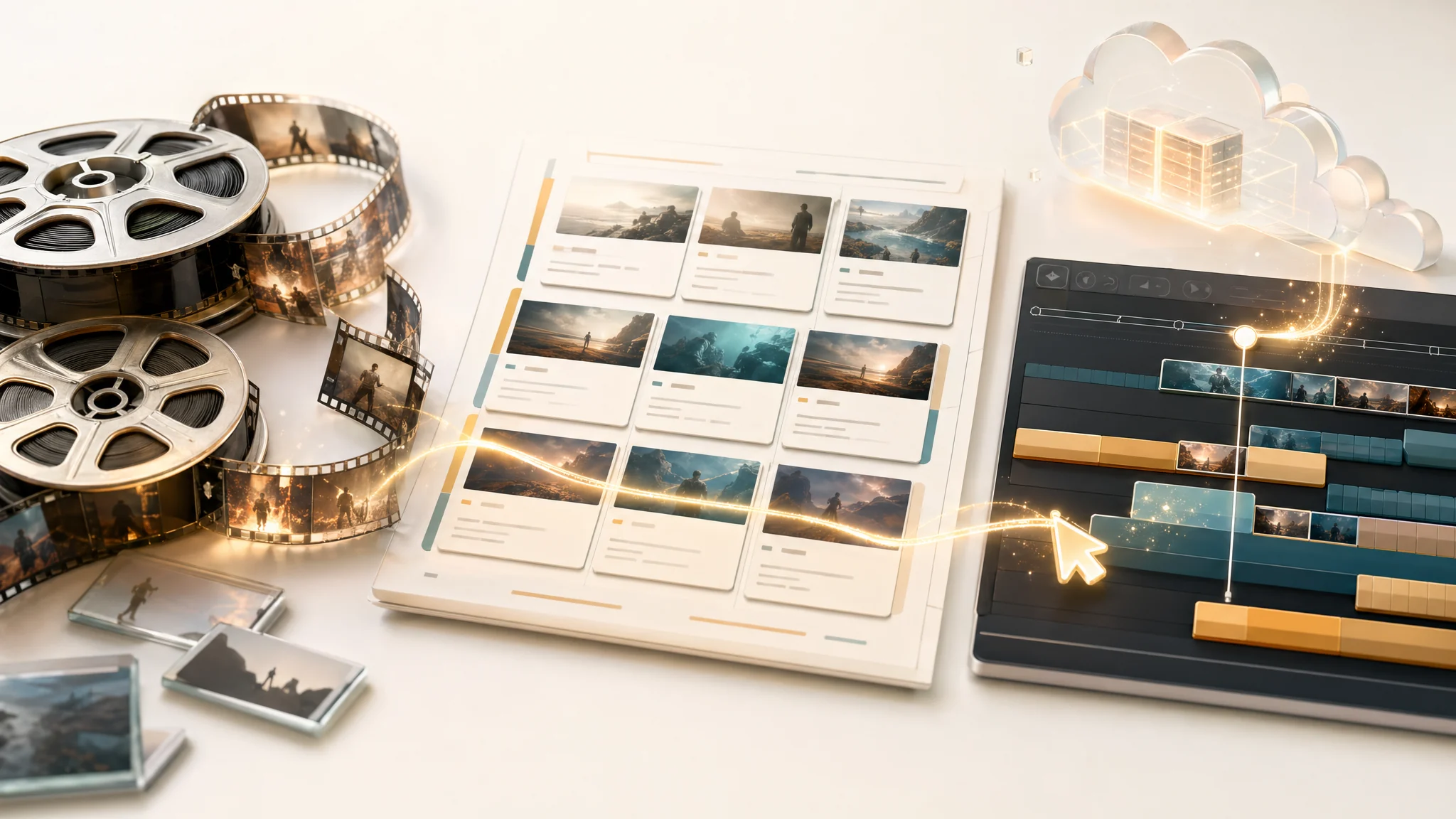
ClipMind is built for teams and creators who need to turn long or messy source footage into a reviewable structure before editing. The core path is simple: create a project, upload footage, let the system understand it, review the reverse script, then arrange and export a cut.
1. Start with a project goal
Before uploading, decide what the final output should be. ClipMind works best when a project has a clear intent, such as a story recap, a visual montage, or a dialogue-focused edit.
- Use story recap when character arcs and plot order matter.
- Use visual montage when the output is driven by shots and atmosphere.
- Use dialogue-heavy when speech and transcript review are the main inputs.
2. Create a project and choose the footage type
Open Projects, create a new project, and choose the footage type that matches the source. This choice guides the understanding workflow and minute usage, so it should match the kind of edit you want to produce.
3. Upload one video or a batch
Upload all relevant source videos into the same project when they belong to the same final edit. ClipMind keeps duration, upload state, processing alerts, and understanding status at the project level.
4. Review understanding results
After processing, inspect scenes, dialogue, key frames, characters, and object candidates. This is the quality-control step that keeps later script and editing work grounded in the actual source material.
5. Use the reverse script as the editing map
The reverse script organizes source moments into story beats, summaries, dialogue, and related frames. Treat it as an editable planning layer, not as a final locked script.
- Check whether important moments are grouped correctly.
- Use dialogue and frame references to verify the suggested order.
- Keep the useful structure and adjust the parts that do not fit your target video.
6. Arrange, narrate, and export
Move into the edit view to assemble a timeline, combine narration or voice work with AI suggestions, and export the version you want to keep. Export history and download state stay attached to the project.
7. Reuse the project as production context
For multi-episode or recurring work, keep appending related footage to the same project when it should share context. For unrelated edits, create a new project so scripts, entities, and export records remain clean.
FAQ
Can I upload multiple videos to one ClipMind project?
Yes. A project can hold multiple videos, which is useful for long sources, episode batches, or edits that need context across several files.
What should I check before exporting?
Check the footage type, understanding status, reverse-script structure, timeline order, narration choices, and available minutes before running an export.
Is the reverse script the final edit script?
No. It is a structured planning layer created from source footage. You should review and adjust it before using it to drive the final edit.