
Best Title Templates for Final Cut Pro: Free and Premium Options
Discover the best title templates for Final Cut Pro including free built-in options, premium third-party packs, and tips for customizing titles to match your brand.
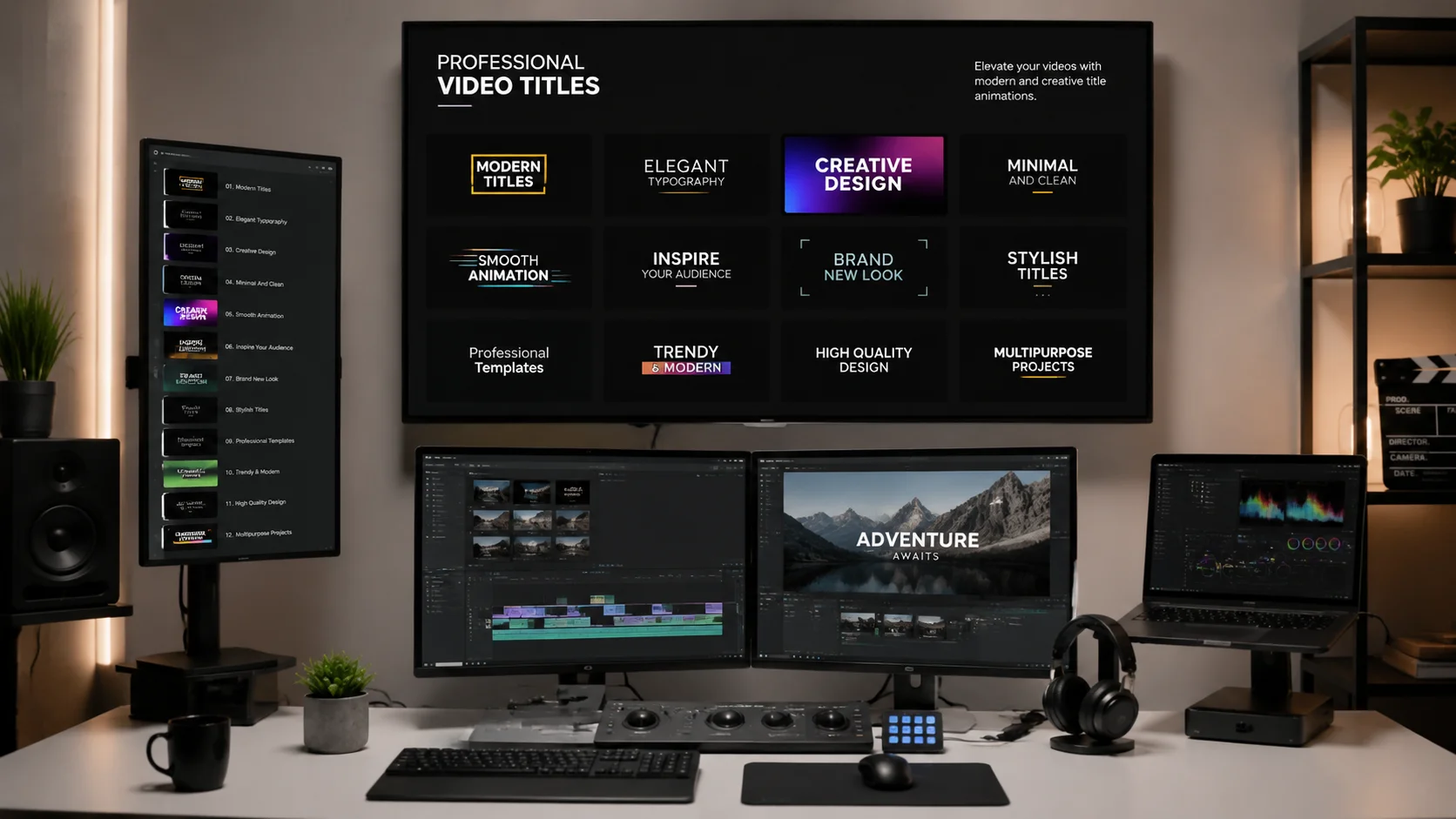
Titles and text overlays are among the most frequently used elements in video editing, yet many creators underutilize the options available to them. Final Cut Pro ships with a surprisingly deep library of built-in title templates, and the third-party ecosystem offers even more variety. Whether you need clean lower thirds for a documentary, bold kinetic typography for a music video, or elegant animated titles for a wedding film, there is a template that fits. This guide covers the best built-in and third-party title template options for Final Cut Pro, how to customize them for your brand, and techniques for building your own reusable title library.
1. Built-in Title Templates in Final Cut Pro
Final Cut Pro includes over 175 built-in title templates organized into categories like Basic, Bumper, Credits, Lower Thirds, and Stylized. The Basic category offers clean, minimal text animations that work well for any project type. Bumper titles are designed for short, impactful intro sequences with bold typography and motion graphics. Lower Thirds are essential for identifying speakers, locations, or context in documentary and corporate content. The Stylized category includes glitch effects, neon glows, and hand-drawn aesthetics for creative projects. To access these, open the Titles and Generators sidebar and browse or search by category. Each template includes customizable parameters like font, color, size, animation speed, and background elements that you can adjust in the Text Inspector.
- Over 175 built-in templates across multiple categories
- Basic: clean minimal text animations for universal use
- Bumper: bold typography for short intro sequences
- Lower Thirds: speaker and location identification for documentaries
- Stylized: glitch, neon, and hand-drawn effects for creative projects
2. Best Third-Party Title Template Packs
The third-party market for Final Cut Pro titles is extensive. MotionVFX offers some of the highest-quality title packs with smooth animations and professional design. Their mTitle series includes hundreds of templates covering corporate, cinematic, social media, and broadcast styles. Envato Elements provides a subscription-based library with thousands of Final Cut Pro title templates across every conceivable category. FxPlug and Ripple Training also offer specialized packs. For creators on a budget, platforms like Mixkit and Motion Array offer free title templates that are significantly better than basic text overlays. When evaluating third-party packs, look for templates that include easy color and font customization, resolution independence, and clear documentation for installation.
- MotionVFX mTitle: hundreds of professional templates across styles
- Envato Elements: subscription library with thousands of title templates
- Mixkit and Motion Array: free templates that exceed basic text overlays
- Look for easy color and font customization and resolution independence
- Check that templates include installation documentation
3. Customizing Title Templates for Your Brand
A title template is a starting point, not a finished product. To make titles consistent with your brand, establish a set of rules for font selection, color palette, animation style, and placement. Choose one or two brand fonts and apply them consistently across all title instances. Define a color palette of two to three primary colors and one or two accent colors, then save these as custom color presets in Final Cut Pro for one-click application. Standardize the animation style; if your brand is modern and clean, use smooth fades and slides rather than glitchy or chaotic animations. Decide on consistent screen placement for lower thirds, main titles, and chapter markers. Save your customized versions as new templates so every future project starts with your branded defaults rather than the stock template.
- Choose one or two brand fonts and apply them consistently
- Define a color palette and save as custom presets for one-click use
- Standardize animation style to match your brand personality
- Establish consistent screen placement rules for different title types
- Save customized versions as new templates for future projects
4. Kinetic Typography and Advanced Title Animation
For projects that demand more dynamic text treatment, kinetic typography offers a powerful way to turn spoken words or key messages into visual performances. Final Cut Pro built-in tools can handle basic kinetic effects through keyframe animation on position, scale, rotation, and opacity. For more complex kinetic typography, third-party packs or companion tools like Apple Motion provide deeper control over character-level animation, path following, and particle effects. The key to effective kinetic typography is readability; if the text moves too fast or overlaps itself, viewers cannot process the message. Time text animations to match the pacing of the accompanying audio or visual rhythm, and use easing curves rather than linear motion for more natural movement.
- Use keyframe animation on position, scale, rotation, and opacity
- Apple Motion provides deeper character-level animation control
- Prioritize readability over complexity in kinetic typography
- Time text animations to audio pacing or visual rhythm
- Use easing curves for natural movement instead of linear motion
5. Building a Reusable Title Library
Efficient video production relies on reusable assets. Create a dedicated title library in Final Cut Pro by organizing your customized templates into a project library or a custom category in the Titles browser. Name each template descriptively, including the style and intended use, such as Corporate Lower Third Blue or Cinematic Title Fade. If you work across multiple brands or clients, create separate libraries for each to avoid confusion. Store your title projects in a cloud-synced folder so you can access them from any editing workstation. For teams, shared libraries ensure consistent branding across all editors. When working on video projects that require rapid iteration, AI tools like ClipMind can analyze the visual style of your footage and suggest title templates that complement the color palette and mood of your content.
- Organize customized templates into a dedicated library or browser category
- Name templates descriptively with style and intended use
- Create separate libraries for different brands or clients
- Store title projects in cloud-synced folders for cross-workstation access
- ClipMind can suggest title templates matching your footage visual style
6. Title Design Best Practices for Different Platforms
Title design should adapt to the platform where the video will be viewed. For YouTube and desktop viewing, you have the full frame to work with and viewers are likely watching on larger screens, so smaller text is legible. For Instagram Reels and TikTok, titles need to be larger and bolder because most viewers watch on mobile phones. Keep critical text within the center 80 percent of the frame to avoid being cut off by platform UI overlays like buttons, captions, and profile icons. For YouTube thumbnails, titles should use high-contrast colors and large fonts readable at small sizes. For broadcast or cinema, adhere to title safe area guidelines, keeping all text within the inner 90 percent of the frame. Always test your titles at the actual viewing size and on the target device before finalizing.
- YouTube and desktop: full frame usable, smaller text is legible
- Instagram Reels and TikTok: larger, bolder text for mobile viewing
- Keep critical text within center 80 percent to avoid UI overlay obstruction
- Broadcast: adhere to title safe area within inner 90 percent
- Always test titles at actual viewing size on the target device
FAQ
Are Final Cut Pro built-in title templates good enough for professional work?
Yes, for many projects. The built-in templates are well-designed and customizable. For highly branded content or specialized styles like kinetic typography, third-party packs offer more variety and polish.
How do I install third-party title templates in Final Cut Pro?
Most third-party packs come as Motion template files that you place in the Motion Templates folder within your Movies directory. After installation, restart Final Cut Pro and the new titles will appear in the Titles and Generators sidebar.
Can I create my own title templates from scratch in Final Cut Pro?
Yes. Use Apple Motion, which integrates directly with Final Cut Pro, to build custom title templates with full control over animation, effects, and publishable parameters. Save them as Motion templates for reuse.