
Editing Construction Time-Lapse Videos With AI Understanding
The best software for editing construction time-lapse videos is not the one with the most filters. It is the one that helps you scan thousands of hours of footage and surface the moments that matter.
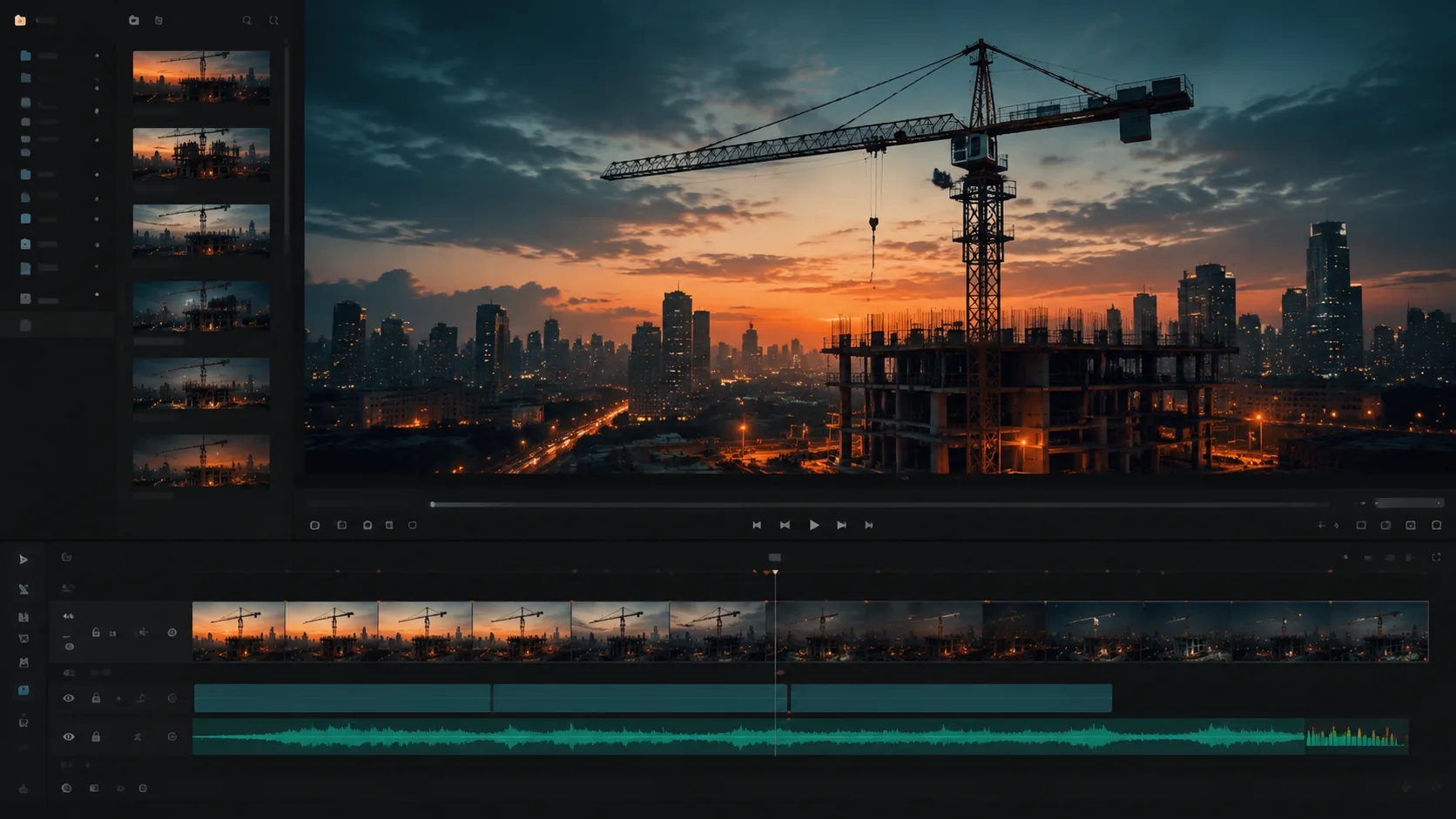
Construction time-lapse projects look simple from the outside: point a camera at a site, leave it for months, then compress everything into a short film. The real work happens in the edit. A single project can produce a few terabytes of frames, hundreds of hours of source clips, and many subtle milestones that need to be called out: foundation pour, steel up, glazing, topping out, handover. The best software for editing construction time-lapse videos is the one that helps you navigate this volume without watching every minute.
1. The hard part is not assembly, it is selection
Most time-lapse editors focus on tools for ramping speed, stabilizing frames, and color matching shots taken months apart. Those are useful, but the slow step is choosing which days to include and how long each phase should hold on screen. Without a way to scan the footage at scale, editors end up scrubbing manually for hours.
- Foundation and excavation often look similar across many days.
- Critical milestones can occupy only a few minutes of source footage.
- Weather, light, and crew presence change the visual feel of each phase.
2. Treat the site footage as one continuous project
Upload your daily compilations or week-long batches into the same ClipMind project. Video understanding will tag scenes, identify recurring objects like cranes, formwork, and machinery, and let you search for specific construction events instead of dragging the playhead.
3. Use the reverse script as a milestone log
The reverse script becomes a milestone log written from the footage itself. You can see when steel structure became dominant, when glazing covered the facade, and when interior fit-out began, with frame references attached to every section.
- Group days into phases such as substructure, superstructure, envelope, and finishes.
- Pull out hero shots where lighting and progress align.
- Annotate phase transitions for the client cut and the internal cut.
4. Build one master edit, then derive deliverables
Construction clients usually ask for several deliverables: a five-minute investor cut, a one-minute marketing reel, a 30-second social loop, and quarterly internal updates. Build the master edit once with full milestone context, then derive each deliverable by adjusting length, narration, and aspect ratio.
5. Narration and captions carry the story
Time-lapse footage is visually striking but can be ambiguous: the viewer cannot always tell what they are looking at. Use narration or on-screen captions to call out phases, schedule progress, and notable events. ClipMind's narration tools keep voice and music synced with the cut even after you adjust pacing.
6. Keep the project for the lifetime of the build
Construction films are rarely finished in one pass. Stakeholders ask for new versions years into a project. Keep all footage and understanding metadata in a single ClipMind project so future cuts do not start from zero. Re-cuts become a planning problem, not a discovery problem.
FAQ
Can I use phone clips alongside dedicated time-lapse cameras?
Yes. Mixing crew phone clips, drone passes, and fixed time-lapse cameras gives the final cut variety. Video understanding treats them as one project so transitions feel intentional rather than improvised.
How long should a construction time-lapse video be?
It depends on audience. Investors usually want three to five minutes with milestone narration, social cuts often live under one minute, and full handover films can run longer with phase breakdowns.
Do I need to keep all the raw frames?
Keep raw frames if you might need higher-resolution exports or unusual aspect ratios later. ClipMind stores understanding results separately, so you keep editing context even if you archive originals to cold storage.