
Best Audio Format for DaVinci Resolve: Complete Technical Guide
Find the best audio format for DaVinci Resolve editing and export. Covers WAV, AIFF, AAC, MP3, and sample rate recommendations for professional workflows.
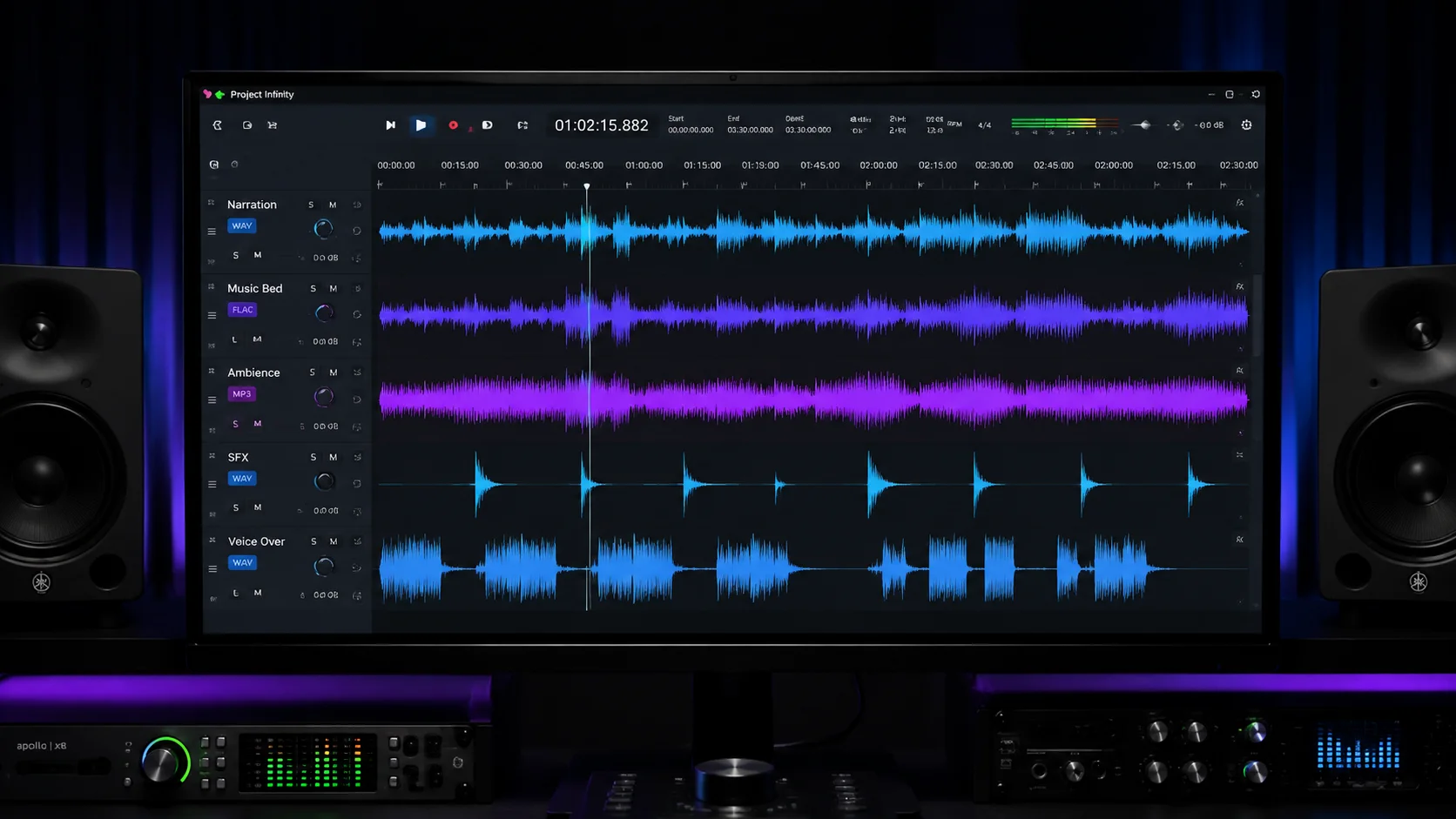
Audio quality is one of the most overlooked aspects of video production, yet it has a massive impact on how audiences perceive your final product. When working in DaVinci Resolve, choosing the right audio format affects everything from editing performance and sync stability to final export quality and file size. Resolve supports a wide range of audio formats, but not all of them are equally suited to every stage of the production pipeline. This guide covers the technical details you need to make informed decisions about audio format selection, sample rates, bit depths, and export settings for both Fairlight editing and final delivery.
1. Audio Formats Supported by DaVinci Resolve
DaVinci Resolve natively supports WAV, AIFF, MP3, AAC, and BWF (Broadcast Wave Format) files. It can also handle FLAC in recent versions. Each format has different characteristics that make it suitable for specific workflow stages. WAV and AIFF are uncompressed PCM formats that preserve full audio fidelity and are ideal for editing and mixing. MP3 and AAC are lossy compressed formats that reduce file size at the cost of audio quality, making them suitable for reference tracks or final delivery to streaming platforms. BWF is essentially WAV with additional metadata fields for timecode and project information, making it the standard in broadcast and professional post-production. Understanding these differences helps you choose the right format for each phase of your project.
- WAV and AIFF: uncompressed PCM, best for editing and mixing
- MP3 and AAC: lossy compression, suitable for reference and delivery
- BWF: WAV with broadcast metadata and embedded timecode
- FLAC: lossless compression with smaller file sizes than WAV
- Resolve handles sample rates from 32 kHz up to 192 kHz
2. Why WAV Is the Best Format for Editing
For the editing and mixing stages inside DaVinci Resolve, WAV is the clear winner. It stores audio as uncompressed linear PCM data, which means Resolve can read and process it without any decoding overhead. This translates to smoother timeline scrubbing, faster waveform rendering, and more reliable playback during complex Fairlight sessions with dozens of tracks. WAV files also support arbitrary bit depths and sample rates, so you can work at 24-bit 48 kHz for standard video projects or push to 32-bit float for maximum headroom during mixing. The only downside of WAV is file size, but storage is cheap and the performance benefits far outweigh the space cost during production.
- Uncompressed PCM eliminates decoding overhead during playback
- Supports 16-bit, 24-bit, and 32-bit float bit depths
- Enables smooth scrubbing and reliable multi-track playback
- Standard choice for professional Fairlight mixing sessions
3. Recommended Sample Rate and Bit Depth
For most video projects, 48 kHz at 24-bit is the recommended standard. This matches the audio sample rate used in most video production workflows and avoids the need for sample rate conversion, which can introduce subtle artifacts. If you are working on music-heavy projects or high-end sound design, you might record at 96 kHz for additional high-frequency detail, but remember that your final deliverable will almost always be at 48 kHz. Bit depth matters more than sample rate for most editors. Working at 24-bit gives you roughly 144 dB of dynamic range, which provides ample headroom for mixing and processing without introducing quantization noise. Avoid working at 16-bit in post-production as it limits your processing headroom to 96 dB.
- 48 kHz at 24-bit is the standard for video production
- 96 kHz is useful for music and high-end sound design capture
- 24-bit provides 144 dB dynamic range for safe mixing headroom
- Avoid 16-bit in post-production to prevent quantization noise
- Match your project sample rate to your video frame rate standard
4. Audio Export Settings for Different Delivery Targets
When exporting from DaVinci Resolve, your audio format should match the delivery target. For broadcast and archival masters, export as BWF at 48 kHz 24-bit to preserve maximum quality and embed timecode metadata. For YouTube and most streaming platforms, AAC at 320 kbps is widely accepted and provides excellent quality at a fraction of the file size. For podcast or audio-only delivery, WAV at 48 kHz 24-bit or MP3 at 320 kbps are both solid choices. In the Resolve Deliver page, you can select the audio codec, sample rate, and bit depth independently from the video settings. Always double-check that your export sample rate matches your timeline sample rate to avoid pitch shifting or sync drift in the final file.
- Broadcast masters: BWF at 48 kHz 24-bit with timecode
- YouTube and streaming: AAC at 320 kbps
- Podcast delivery: WAV 48 kHz 24-bit or MP3 at 320 kbps
- Always match export sample rate to timeline sample rate
- Configure audio codec independently from video settings on Deliver page
5. Converting Audio Before Importing into Resolve
If you receive audio in a format that Resolve does not handle well, or if you need to standardize files from multiple sources, convert them before importing. Use a dedicated audio converter like ffmpeg, Adobe Audition, or the free tool Audacity to batch convert everything to WAV at your project sample rate. This avoids potential issues with variable bit rate MP3 files causing sync drift or with sample rate mismatches that require real-time conversion during playback. When converting, always go from lossy to uncompressed rather than from one lossy format to another, as each lossy encoding pass degrades quality further. For creators who work with AI-generated video content, tools like ClipMind can analyze the audio track of source footage and flag potential format or quality issues before they reach the editing stage.
- Use ffmpeg, Audacity, or Adobe Audition for batch conversion
- Convert all audio to WAV at your project sample rate before importing
- Never convert from one lossy format to another
- Check for variable bit rate MP3 files that may cause sync drift
- ClipMind can flag audio format and quality issues in source footage
6. Common Audio Issues and How to Avoid Them
Several audio problems in DaVinci Resolve trace back to format choices. Sync drift over long timelines is often caused by variable bit rate MP3 files or mismatched sample rates between the audio file and project settings. Crackling or popping during playback usually indicates that the system is struggling to decode compressed audio in real time alongside heavy video processing. Clipping and distortion on export are frequently the result of mixing at 16-bit where there is insufficient headroom for processing. To avoid these issues, standardize on WAV at 48 kHz 24-bit for all production audio, keep your project sample rate consistent, and use the Fairlight metering tools to monitor levels throughout the mix. If you encounter persistent playback issues, try rendering audio cache files from the Playback menu to pre-process complex audio chains.
- Sync drift: caused by VBR MP3 or sample rate mismatch
- Crackling: system struggling with real-time compressed audio decoding
- Clipping on export: insufficient bit depth headroom during mixing
- Standardize on WAV 48 kHz 24-bit for all production audio
- Use Fairlight metering and audio cache rendering to prevent issues
FAQ
What audio format does DaVinci Resolve use internally?
DaVinci Resolve processes audio internally as 32-bit float at the project sample rate, regardless of the source file format. This gives you maximum processing headroom during mixing.
Can I use MP3 files in DaVinci Resolve?
Yes, Resolve can import and play back MP3 files. However, constant bit rate MP3 files are more reliable than variable bit rate ones. For editing and mixing, converting MP3 to WAV before import is strongly recommended.
What is the best audio export setting for YouTube from DaVinci Resolve?
Use AAC at 320 kbps with a 48 kHz sample rate. This provides excellent audio quality that meets YouTube recommended upload specifications while keeping file sizes manageable.